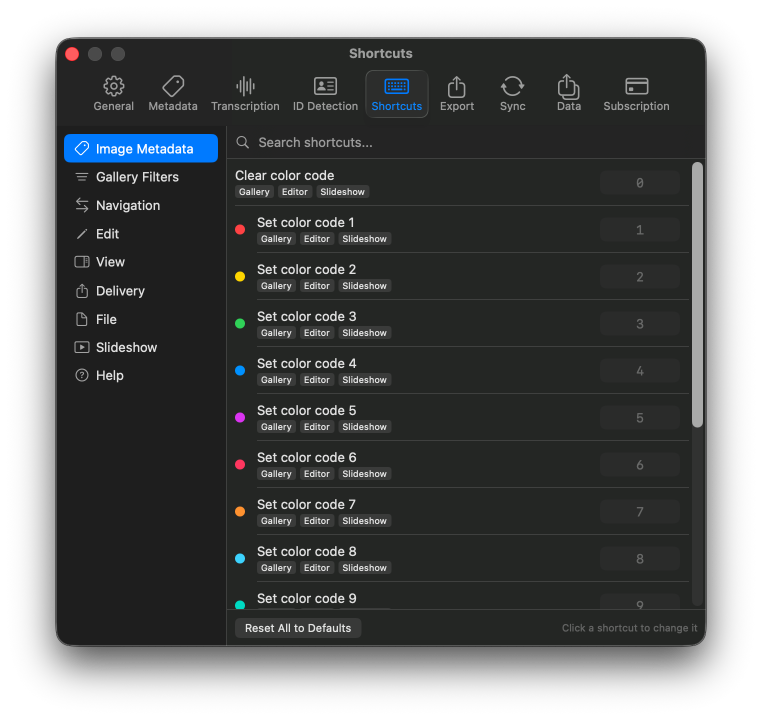
The Deadline Editor gallery is your central workspace for browsing and organizing images. It uses virtual scrolling to handle large collections with smooth performance. The gallery is divided into:
- Source tree sidebar — Favorites, recent folders, local volumes, network/SMB shares, FTP servers, hot folders, and Deadline FTP sources in one unified browser
- Thumbnail grid — Adjustable sizing with configurable filename display
- Info panel — Metadata and file details for the selected image
- Module bar — Switch between Metadata, Crop, Tone, and Delivery modules
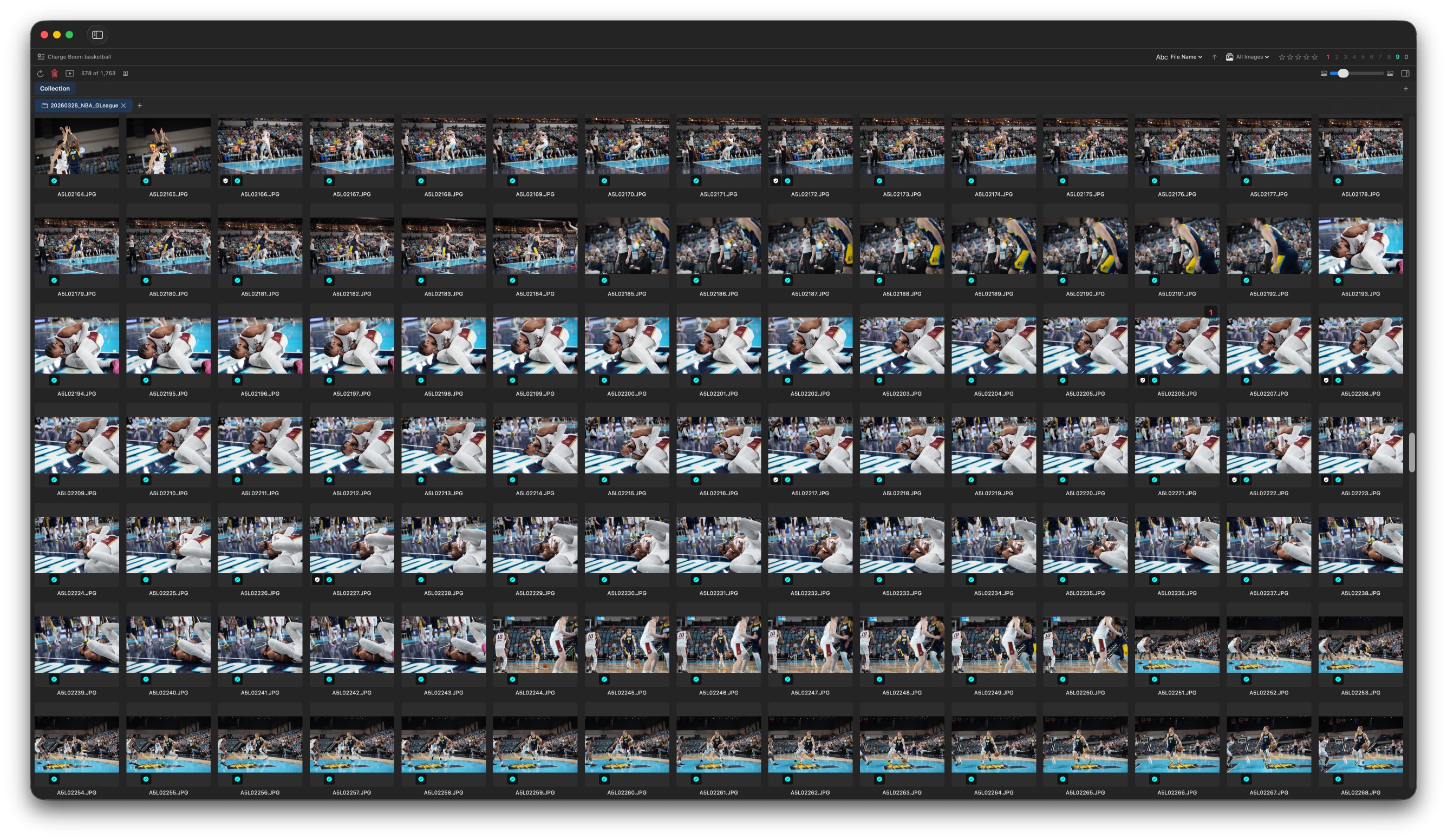
Work on multiple shoots simultaneously with tabbed collections. Each tab maintains independent state:
- Independent sort order — Each tab can be sorted differently
- Independent filters — Filter by color code, rating, file type, etc. per tab
- Independent selection — Selecting images in one tab doesn't affect others
- Custom arrangement — Drag and drop images into a custom order within any tab
When you shoot RAW+JPEG, Deadline Editor automatically combines pairs into a single gallery entry. Toggle the pairing on or off to view files individually or as pairs.
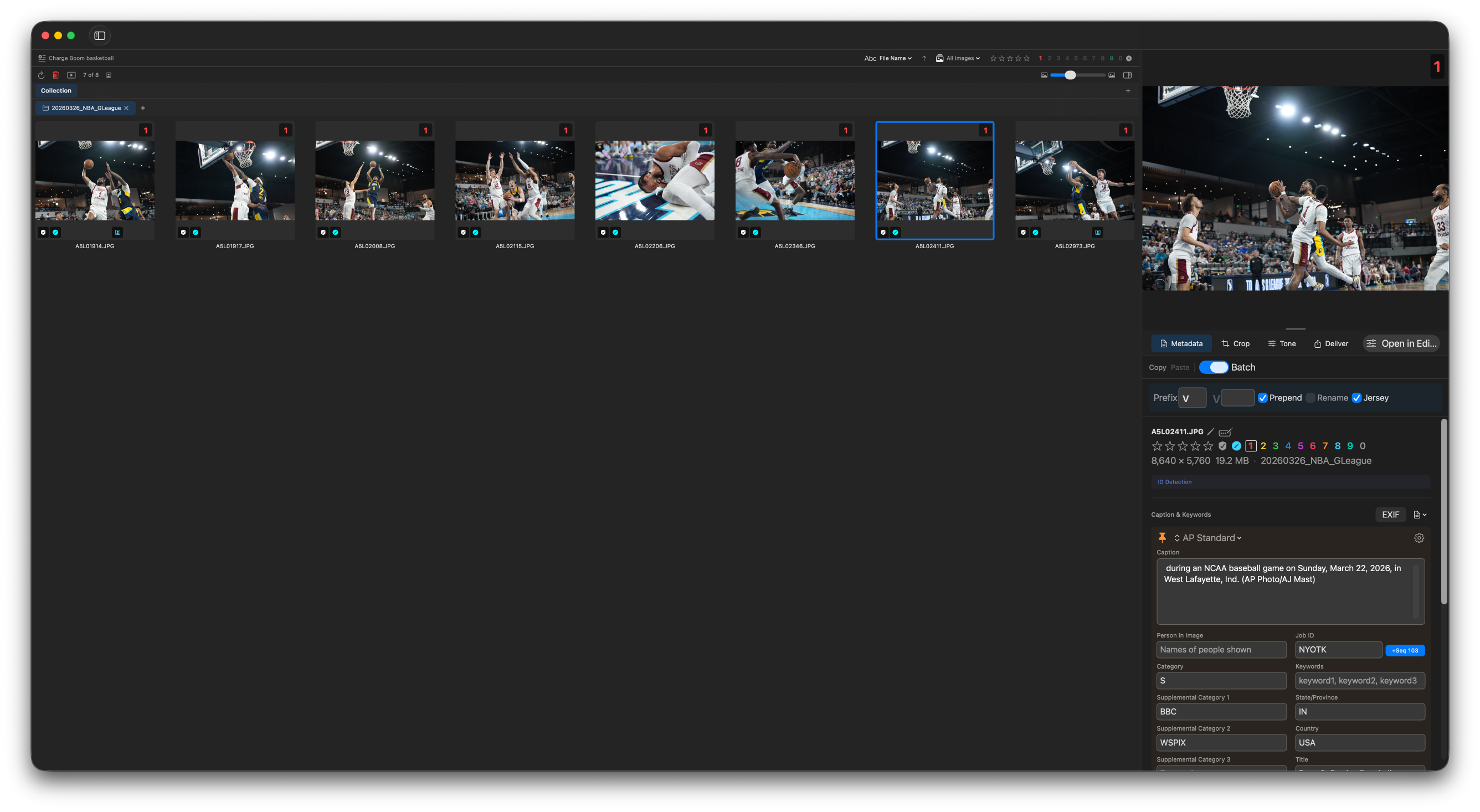
Deadline Editor provides extensive filtering options to find exactly the images you need. Multiple filters can be combined:
| Filter | Description |
|---|---|
| Color Code | Filter by color label (0–9) |
| Star Rating | Filter by star rating (0–5) |
| File Type | Show only JPEG, only RAW, or both |
| Protected Status | Show only protected/locked files |
| Transcription State | Filter by voice tag transcription status |
| Export Status | Filter by whether images have been exported |
| FTP Upload Status | Filter by FTP delivery status |
| Batch ID | Filter by assigned batch ID code |
Sort Options
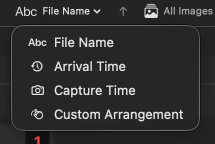
Images can be sorted by:
- Filename — Alphabetical by file name
- Capture time — Based on EXIF capture date
- Arrival time — Order files were imported
- Custom arrangement — Drag-and-drop order
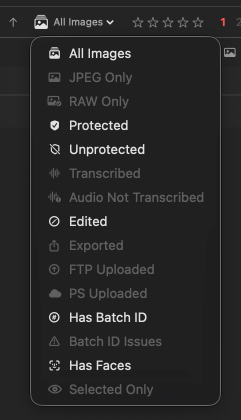
Quickly rate and label images using keyboard shortcuts. Both systems support multi-select and hover-priority:
Color Codes (0–9)
Press number keys 0–9 to assign color labels. Works on the hovered image or all selected images. Use for workflow stages, pick status, or custom categories.
Star Ratings (0–5)
Press the star rating shortcut to assign ratings. Ideal for quality grading. Filter by rating to quickly surface your best shots.
When you hover over an image and press a rating or color shortcut, it applies to the hovered image — even if other images are selected. This lets you quickly rate images as you scan through the grid without changing your selection.
Enter full-screen slideshow mode to review images at full size. Features include:
- Auto-advance — Set a timer to automatically move to the next image
- Zoom and pan — Zoom into details and pan around the image
- Rate while viewing — Apply star ratings and color codes without leaving the slideshow
- Arrow key navigation — Move through images with left/right arrow keys

The source tree gives you a unified view of all your image sources:
- Favorites — Pin frequently-used folders for quick access
- Recent folders — Recently opened locations
- Local volumes — Internal and external drives, including camera cards
- Network/SMB shares — Mounted network volumes
- FTP servers — Configured FTP/SFTP connections
- Hot folders — Watched folders that auto-import new files
- Deadline FTP — Cloud sources from your DeadlineFTP account
| Shortcut | Action |
|---|---|
0–9 |
Assign color code |
Arrow keys |
Navigate between images |
Space |
Toggle before/after in editor |
Cmd+B |
Enter batch ID mode |
Control+1 |
Switch to Metadata module |
Control+2 |
Switch to Crop module |
Control+3 |
Switch to Tone module |
Control+4 |
Switch to Delivery module |
All shortcuts are customizable. Open Preferences → Keyboard Shortcuts to remap any shortcut to your preferred key combination. Shortcuts are context-aware and adapt based on whether you're in the gallery, editor, batch mode, or slideshow.